Change your plan, invoices and cancelling
Change your plan from Billing: upgrades apply now, downgrades at renewal. Invoices, card and cancelling are in Manage billing.
3 min readاقرأ المقال بالعربية
Change your plan from Billing & plan in Settings. An upgrade applies now and you pay the difference today. A downgrade applies from your next renewal. Invoices, your card, and cancelling all live in Manage billing. Zolai has no cancel button of its own.
Who can do this
Only the Admin role has billing permission by default, and you can give it to a custom role. The Support agent and Viewer roles can't open the Billing page.
Subscribe after your trial
The free trial lasts 14 days and needs no card. When it ends, your workspace is Paused: your agent stops answering, and your team still receives chats.
Open Settings, then Billing.
Pick the plan you want. Prices are shown on the page.
Click Subscribe to {plan}. You go to a secure Polar checkout page.
Pay and return to Zolai. You see Activating your plan…, then the page updates by itself. If it lags, click Refresh.
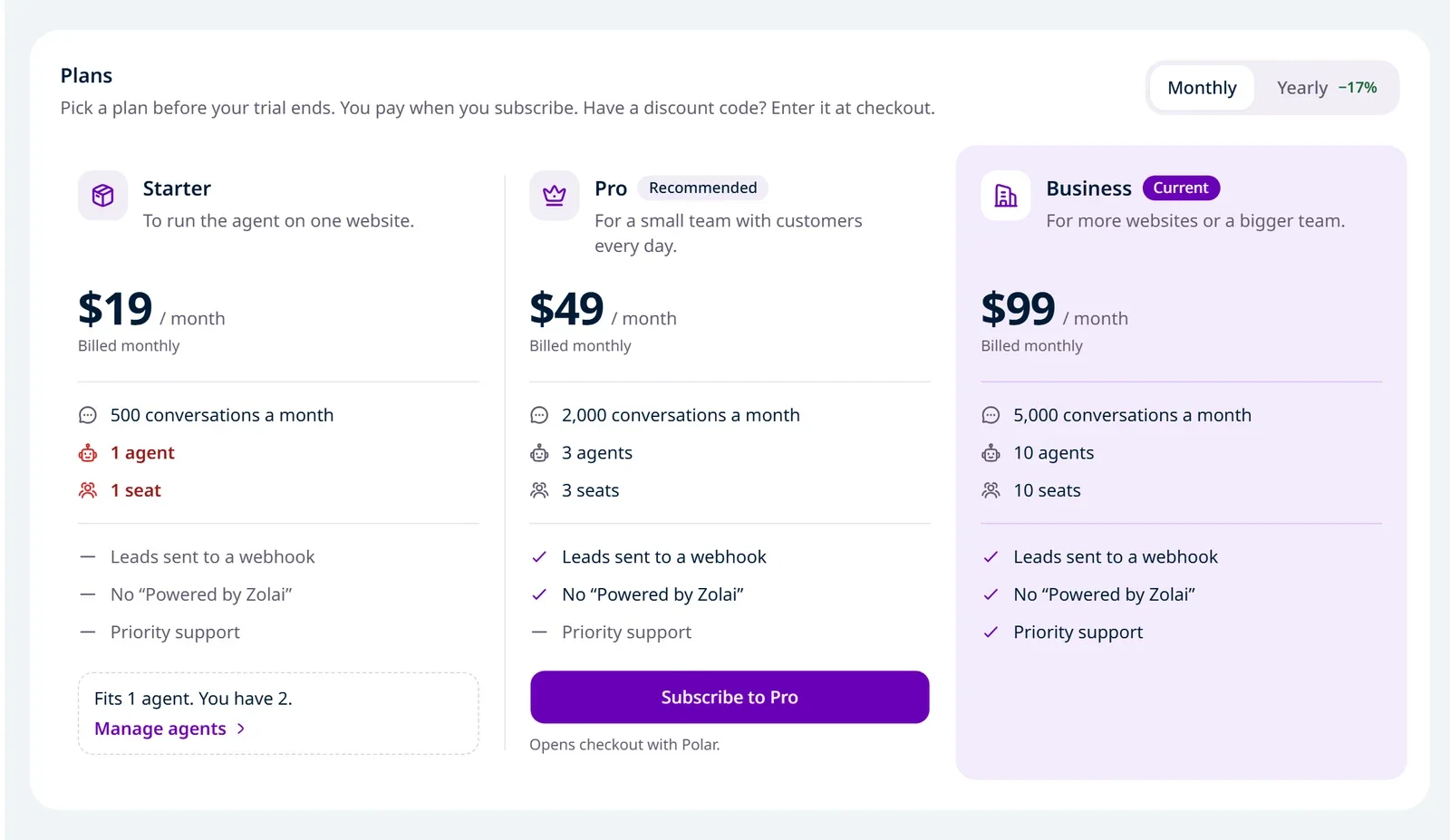
Switch between monthly and yearly
In the plans section, choose Monthly or Yearly with the switch above the cards.
Click Switch to yearly (or the matching button to go back to monthly).
Upgrade or downgrade
Open Billing and choose the new plan.
To upgrade, click Upgrade to {plan}. It applies right away and the difference is charged now.
To downgrade, click Downgrade. You keep your current plan until the next renewal, then the new one starts.
Changed your mind after scheduling a downgrade? Click Keep {plan} on the Billing page to cancel the change before renewal.
If Zolai refuses the change
Zolai won't move you to a plan that can't hold your current agents or team members. A message tells you that you use more than the plan allows, and each plan card shows how many agents it fits next to how many you have.
Click Manage agents or Manage members and reduce the number.
Go back to Billing and switch plan.
Find invoices and update your card
In the Current plan card, click Manage billing.
Polar's customer portal opens. Your invoices and payment card are there.
If a payment fails, the plan status shows Payment failed and an Update card button appears. Click it and change the card.
[[IMAGE S58: Current plan card with the Manage billing button]]
Cancel your subscription
You cancel only in the Polar portal, not in Zolai.
Click Manage billing.
In the portal, find the workspace's subscription and cancel it.
After you cancel, your plan keeps working until the paid period ends, and the status shows Won't renew. Then the workspace becomes Paused: the agent stops answering and your team still receives chats. It does not go back to the free trial.
Deleting a workspace in Settings cancels its subscription immediately, not at the end of the period. If Zolai can't reach Polar, the workspace is not deleted. Try again.
If you have several workspaces
Each workspace has its own subscription. The Polar portal lists every subscription paid with your email, so check you are changing the right one before you cancel.
Statuses you may see
Status | Meaning |
|---|---|
Active | The plan is running |
Trial | You are in the free trial |
Paused | The agent doesn't answer; your team still receives chats |
Payment failed | A payment didn't go through; update your card |
Won't renew | You cancelled; the plan runs until the period ends |