Test your agent before visitors see it
Ask your agent questions in Try it, see which sources it answered from, then test the real chat on a test page before you install it.
4 min readاقرأ المقال بالعربية
Before you put the chat on your site, ask your agent what your visitors will ask. There are two ways: Try it inside the dashboard, a test chat that isn't saved, and Try it on a test page, the real chat window as your visitors will see it.
Who can do this: members who can view agents.
Which one to use
Try it | Try it on a test page | |
|---|---|---|
Where | A section of your agent's page | A button at the top of your agent's page; opens a page in a new tab |
What you see | Your agent's replies and each answer's sources | The chat window as it looks on your site |
Is the chat saved? | No | Yes, it shows in the Inbox |
Does it count toward your plan? | No, and it works even at the limit | Yes, like any visitor's conversation |
Leads and handoff | Preview only: nothing is saved or sent | Real: the lead is saved and delivered, and the chat is handed to your team |
Start with Try it while you improve your content, then use the test page for a last check before you install.
Test in Try it
Open your agent, then Try it.
Type a question the way a visitor would, or click one of the suggested questions.
Read the reply and what's under it.
To start over, click New chat.
Here the agent uses the same knowledge and settings as on your site, and follows your business hours as they are right now.
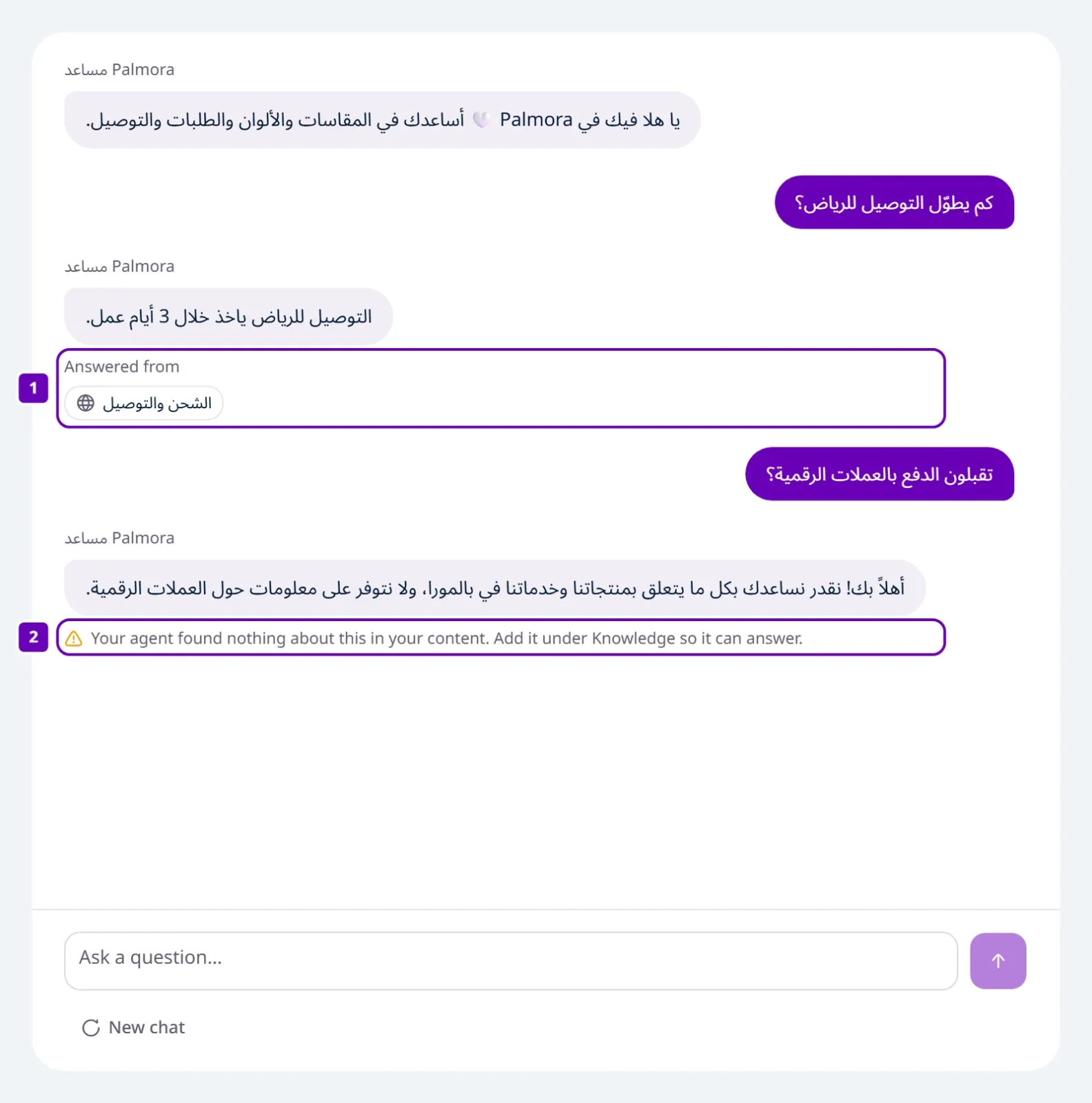
Answered from
Under every answer that comes from your content, Answered from lists the sources the agent actually used: a page of your site, a file, or a Q&A. Click a source to open it and check the answer is right.
"Your agent found nothing about this in your content"
Your agent answers only from your content. When it finds nothing to answer with, this note shows under the reply. It also doesn't answer questions unrelated to your business, such as general knowledge: it declines in one sentence and says what it can help with.
What to do when the note shows for a question about your business:
Add the answer in Knowledge: a Q&A for an exact answer, Business info for phones, addresses and links, or a text or a file.
Wait until the source is Ready.
Click New chat and ask again.
The note also shows under greetings and under a polite decline of an off-topic question, because those replies don't come from your content. That's expected; nothing needs fixing.
Handoff and leads in Try it
If you ask for a person, or leave your name and number, Try it shows what would have happened: the Handoff brief for your team or a New lead card, marked as seen by your team only. Nothing is saved and no email is sent.
Test on the test page
At the top of your agent's page, click Try it on a test page.
A page that behaves like your site opens in a new tab. Open the chat from the button at the bottom of the page.
Ask the way a visitor would.
This is the real chat window, with its look, greeting and suggested questions. It works even if you've set Allowed sites, because our test page is always allowed.
Conversations on the test page are real: they show in the Inbox, count toward your plan's conversation limit, and leads left there are saved and delivered. Use it for a few checks, and Try it for the rest.
What to ask
Your visitors' usual questions: prices, delivery, returns, opening hours.
Your phone number and address, to check they come from Business info exactly.
A question in English and one in another dialect, to see the reply language and dialect.
A question you know isn't in your content, to see how it behaves.
A request to talk to a person.