Read your analytics
Open Analytics to see how many conversations your agent answered alone and how many it handed to your team. Pick a period and agent, and compare with the one before.
4 min readاقرأ المقال بالعربية
Open Analytics to see how many conversations your agent received, how many it answered alone, and how many it handed to your team. Pick a period and an agent at the top, then move between the five tabs. Every number is computed live from your conversations and compared with the period before it.
Who can do this
You need the Analytics view permission. The Questions tab also needs Inbox access, otherwise you see "Needs Inbox access". Without the permission to view all conversations, you see only your own and unassigned ones.
Choose the period and agent
Open Analytics. The default tab is Overview.
Under Period and agent, choose 7 days, 30 days, or 90 days. The default is 30 days.
Choose All agents or a single agent.
The period includes today and the days before it, counted from midnight. It is compared with a stretch of the same length right before it. Days follow your workspace time zone, which is printed at the bottom of the page.
Read the headline numbers
Overview shows Headline numbers: Conversations, Answered by the AI alone, Handed over, Rated helpful, First team reply, and leads. Each card has a pill comparing it with the previous period, and some cards also show a small daily chart.
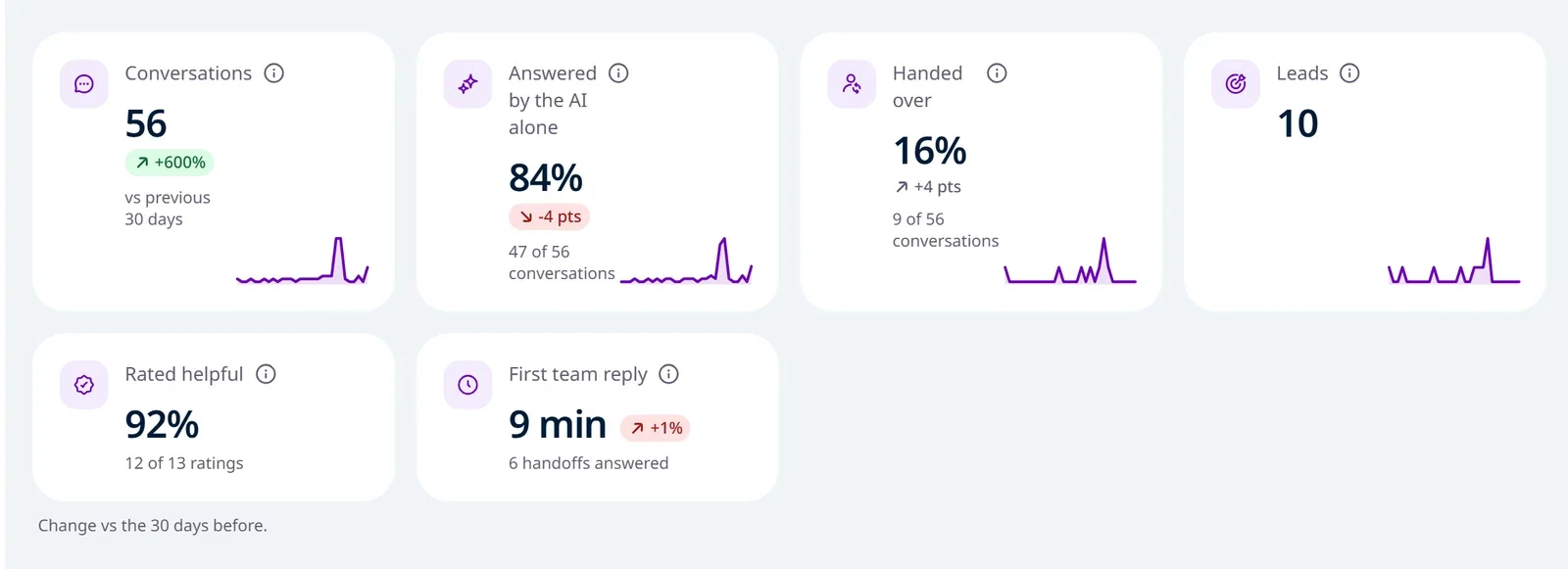
Answered by the AI alone means never handed to your team. Handed over means handed to your team.
In the charts, violet is the AI alone and amber is handed over to the team.
A green pill is a good change, red is bad, grey is neutral. Waiting time going up counts as bad.
Counts and durations change in percent. Shares change in percentage points.
No pill appears when there is no earlier number or it was zero.
If a card shows "—" and "Not enough data yet (n of 5)", it needs at least 5 items before it shows a share. Count cards don't have this limit. If there is nothing to measure at all, you read "No conversations", for example.
Understand the AI accuracy tab
AI accuracy shows how the AI answers relate to your knowledge: Grounded and No source found, plus Showed a source and Rated at all, and also Closed without the team and Asked for a person. Zolai does not claim to know whether an answer was right. Each card is named for what it measures, nothing more.
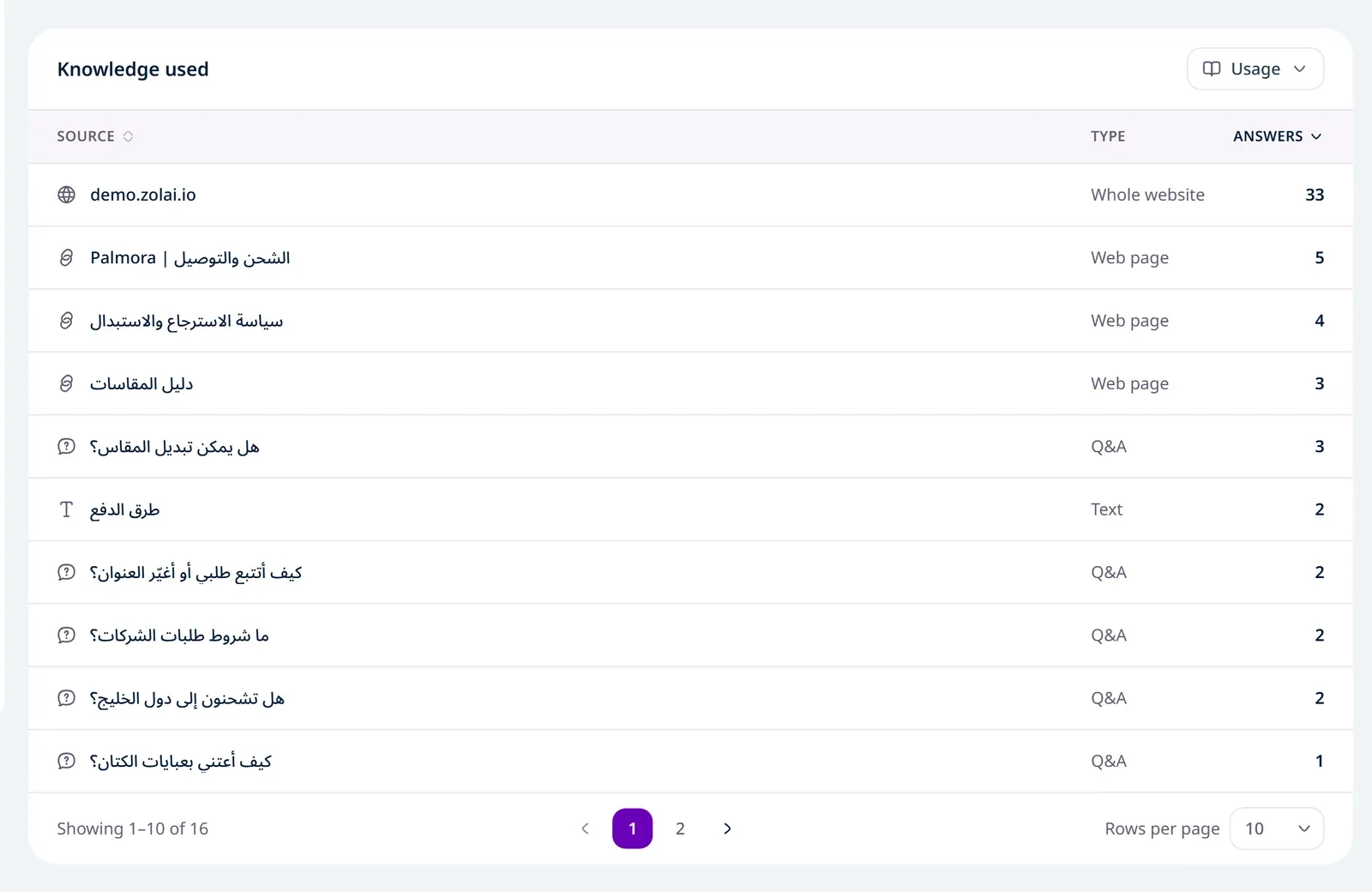
Below that is Knowledge used. For each source it shows how many answers cited it in the period, most-cited first. A Ready source that was never cited shows Not used, and a deleted source shows Removed from Knowledge. You can filter by used or unused.
Greetings and small talk count neither as answered nor as unanswered. Questions the agent declines as off-topic are counted as unanswered.
Follow questions and your team
Questions: review the questions your agent couldn't answer, then use Add to Knowledge to close the gap.
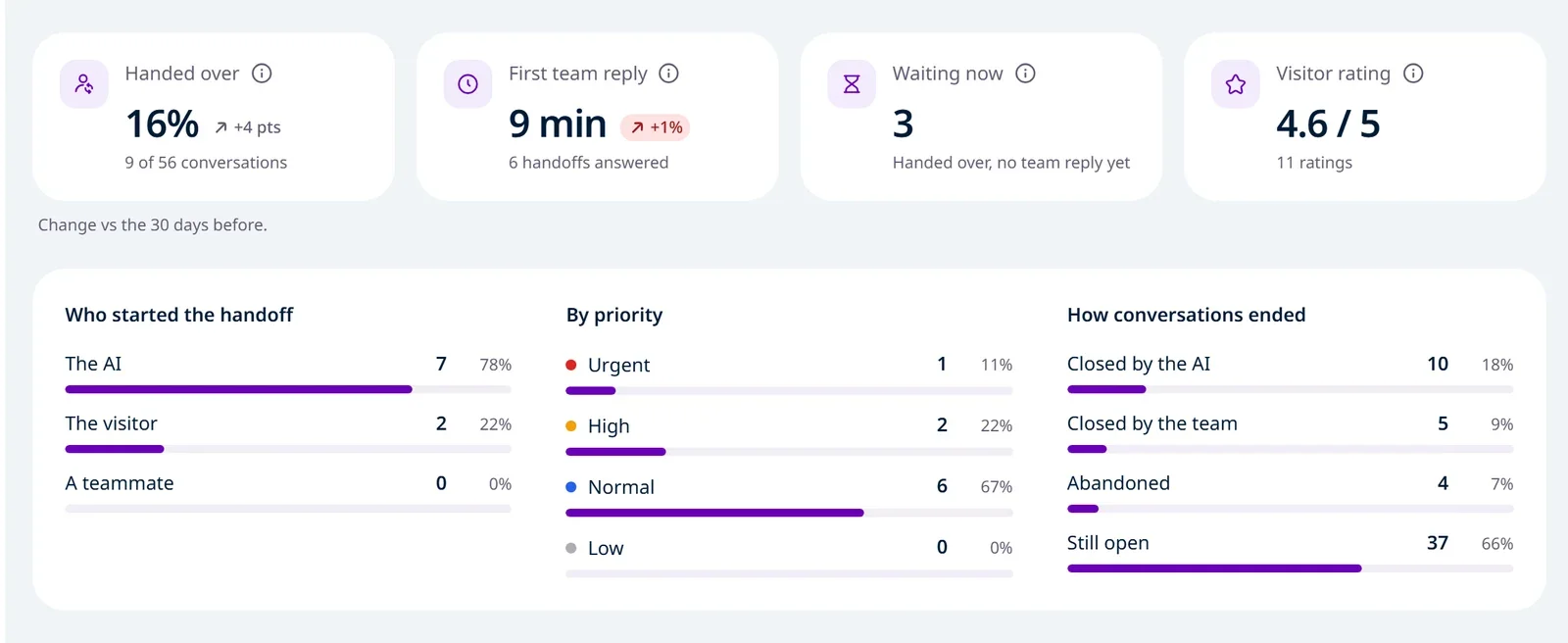
Team: shows Handed over, First team reply, Waiting now, and Visitor rating. Below them, Handoffs in detail shows who started the handoff, the split by priority, and how conversations ended.
Follow your leads
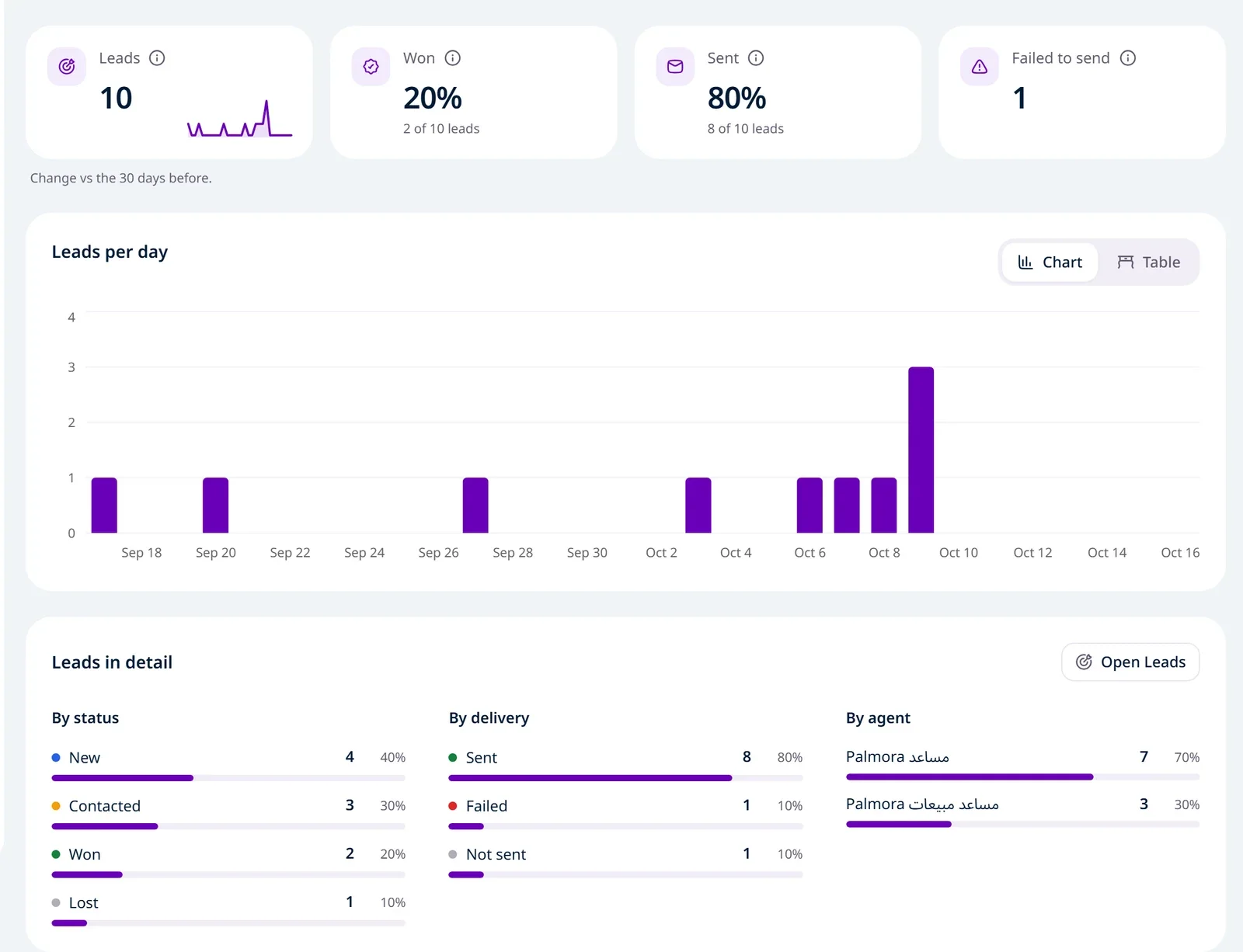
The Leads tab shows how many leads the agent captured, including those who are Won, Sent, or Failed to send. The link to the Leads page needs the permission to view leads.
Not available yet
Exporting these numbers and a list of top questions are not available yet.