Keep your agent's knowledge up to date
Crawl your site again or re-sync a file from the Knowledge page so your agent learns your latest changes. Zolai does not refresh sources on its own.
3 min readاقرأ المقال بالعربية
To keep your agent's knowledge up to date, crawl your site again or re-sync a source from the Knowledge page. Zolai does not re-read your website or files on a schedule. After something changes, you refresh it yourself. (Product catalog feeds are separate and sync every 6 hours.)
Who can do this
Admins, or a custom role with the permission to manage sources. The Support agent role and Viewers can view Knowledge but not change it.
Update after your website changes
Crawl the whole site again
Open your agent and go to Knowledge.
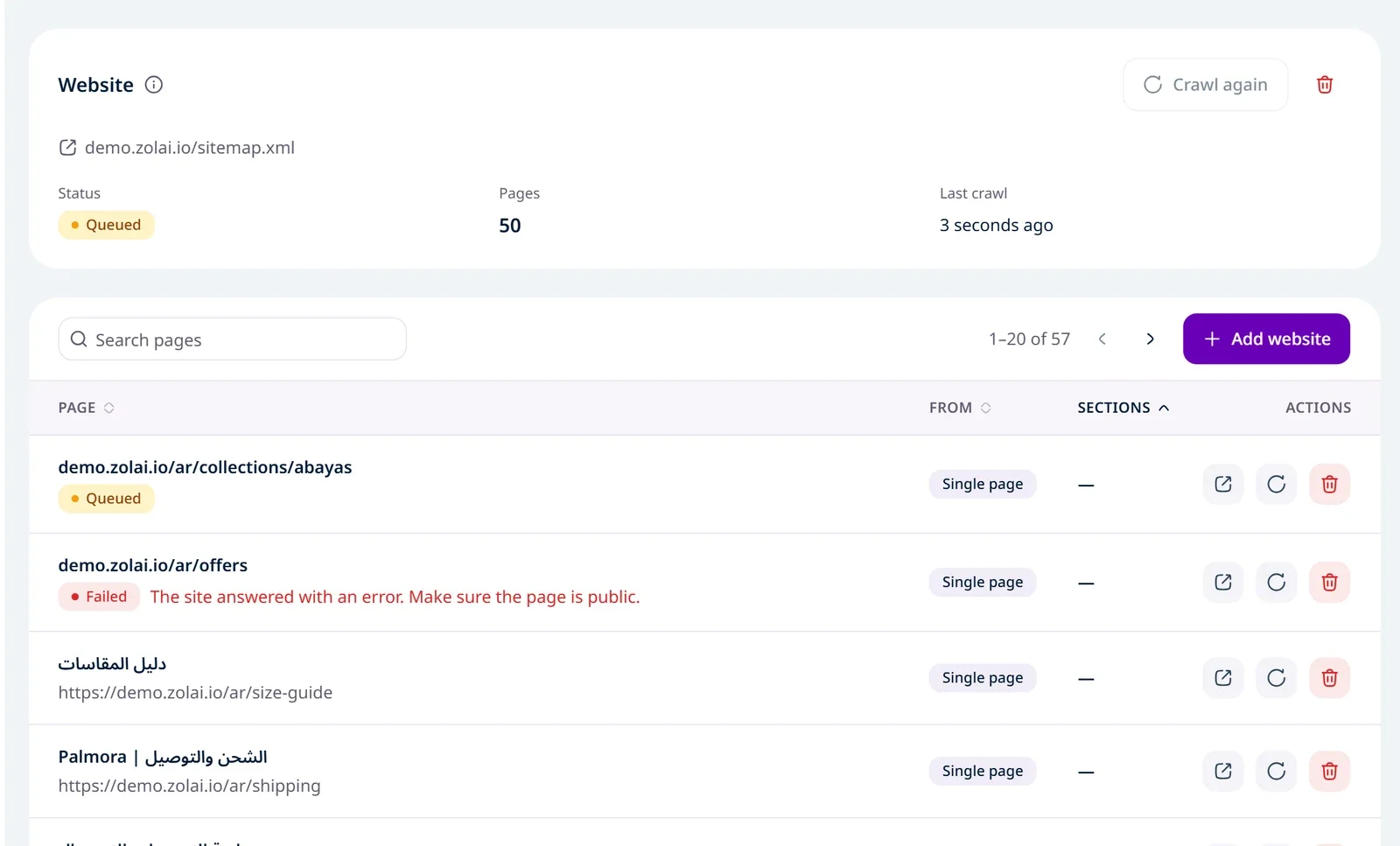
In the Website tab, find your site card.
Click Crawl again.
Wait until the status changes to Ready.
Crawl again after you change the site, such as new prices, hours, or a return policy.
Re-sync a single page
In the Website tab, find the page.
Click the Re-sync {title} icon at the end of the row.
Update a file, Q&A, or text
Open the matching tab on the Knowledge page: Files, Q&A, or Text.
Click Re-sync on the row. Zolai downloads and reads the file again.
To refresh several sources at once, select their rows and use the bulk Re-sync action.
Replace a file with a new version
There is no "replace file" control. Do this instead:
Upload the new version. See Upload files.
Wait until its status is Ready.
Delete the old file from its row, then click Delete in the confirmation dialog.
Deleting can't be undone. Your agent stops using the content right away. The dialog is titled Delete "{title}"? before you confirm.
Read the source statuses
Status | Meaning |
|---|---|
Queued | Waiting its turn |
Learning | Zolai is reading it now |
Ready | Your agent uses it |
Failed | The read did not work. Try again |
If a source stays Queued or Learning for about 30 minutes, it is probably stalled. Crawl again or re-sync it to fix that. If the app says the source is busy, it is still being processed normally. Wait a bit and try again.
Find sources the agent never uses
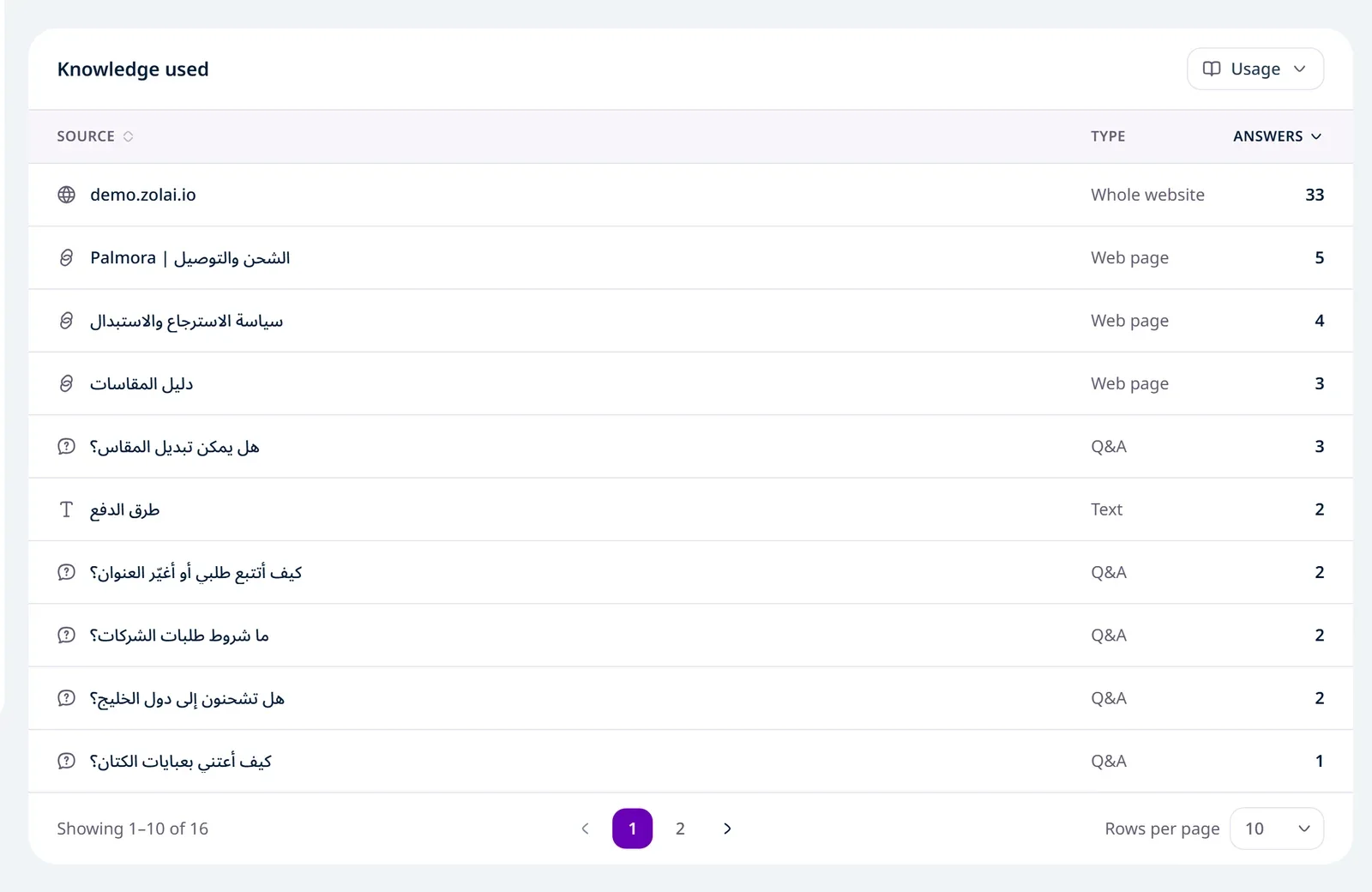
Open Analytics and go to the AI accuracy tab.
Choose a period, then look at Knowledge used.
You will see how many answers cited each source. A Ready source with zero uses shows as unused. That is a hint to review it or remove it.
Check the result
Open Test your agent and ask about what you changed. See Test your agent.
Limits
Item | Limit |
|---|---|
Website | Up to 50 pages |
File size | 10 MB each |
Per upload | 10 files |
File sources | 100 per agent |
300 pages | |
Scanned PDFs | Can't be read |
Pasted text | 100,000 characters |