Add your website
Teach your agent from your website: add the whole site (up to 50 pages) or one page, follow its status, and crawl it again after you change your pages.
4 min readاقرأ المقال بالعربية
Your website is the main thing your agent learns from. Add its link: we read the pages and store their text in the agent's knowledge, so it answers from them. You can add the whole site or a single page.
Who can do this: members who can add knowledge. Crawling again and removing need the sync and delete permissions.
Add a website
Open your agent, then Knowledge → Website.
Click Add website.
Enter the link in Website link.
Under What should we read?, choose Whole website or This page only.
Click Add content.
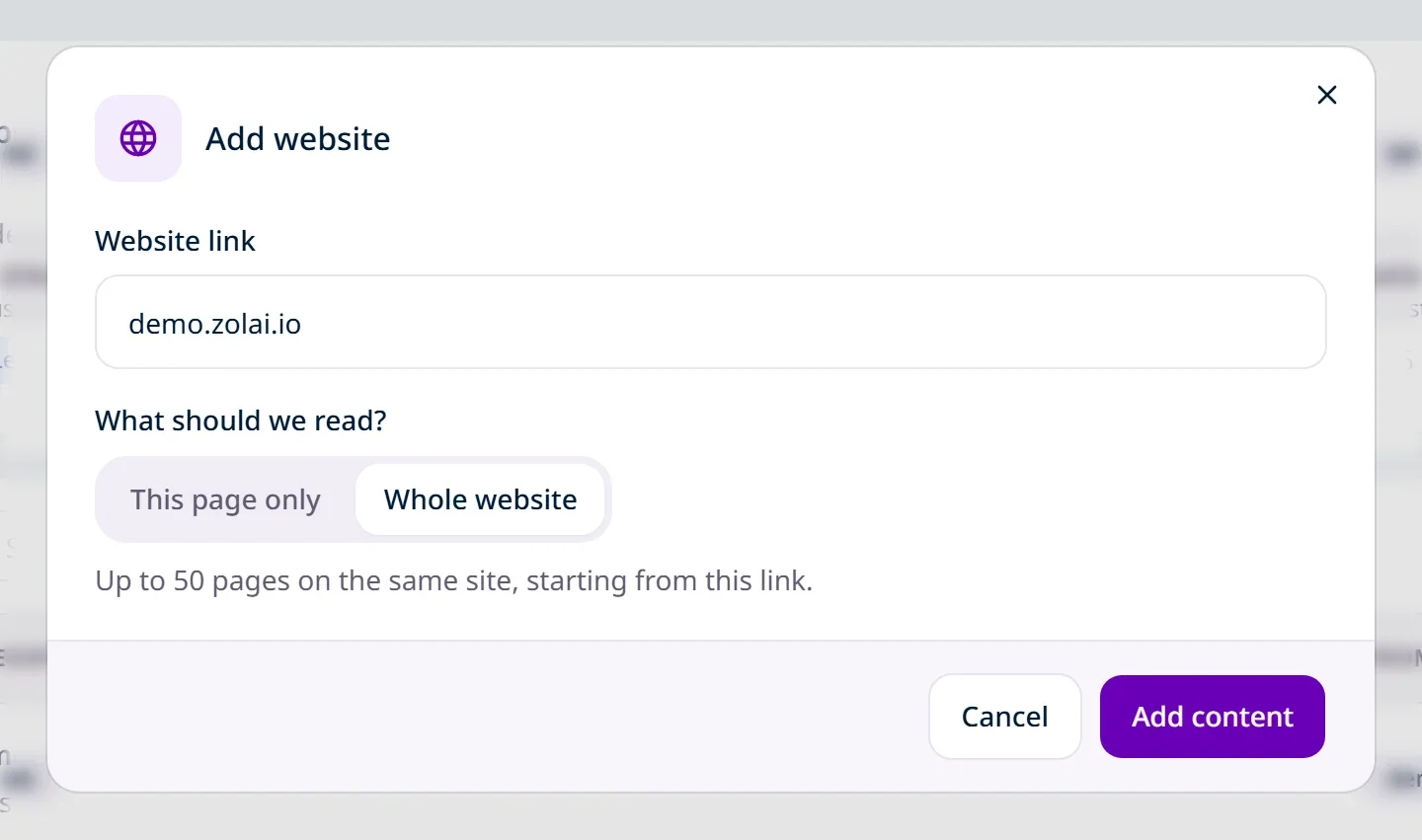
Your agent usually learns the content within minutes; you can keep working meanwhile.
If you built your agent from your website at the start, the site is already added. You don't need to add it again.
Whole website or one page?
Option | What we read |
|---|---|
Whole website | We start from the link you entered and read the site's sitemap and the links within the same site, up to 50 pages that have text. |
This page only | Just the page at that link. Useful for an important page outside your main site, or one you want to refresh on its own. |
When we read a whole site:
We never leave your domain. A subdomain such as
blog.yourstore.comis a separate site; add it on its own.We skip anything that isn't a web page, such as images and files. To teach your agent a file, upload it under Files.
The same link can't be added twice to the same agent.
Follow the status
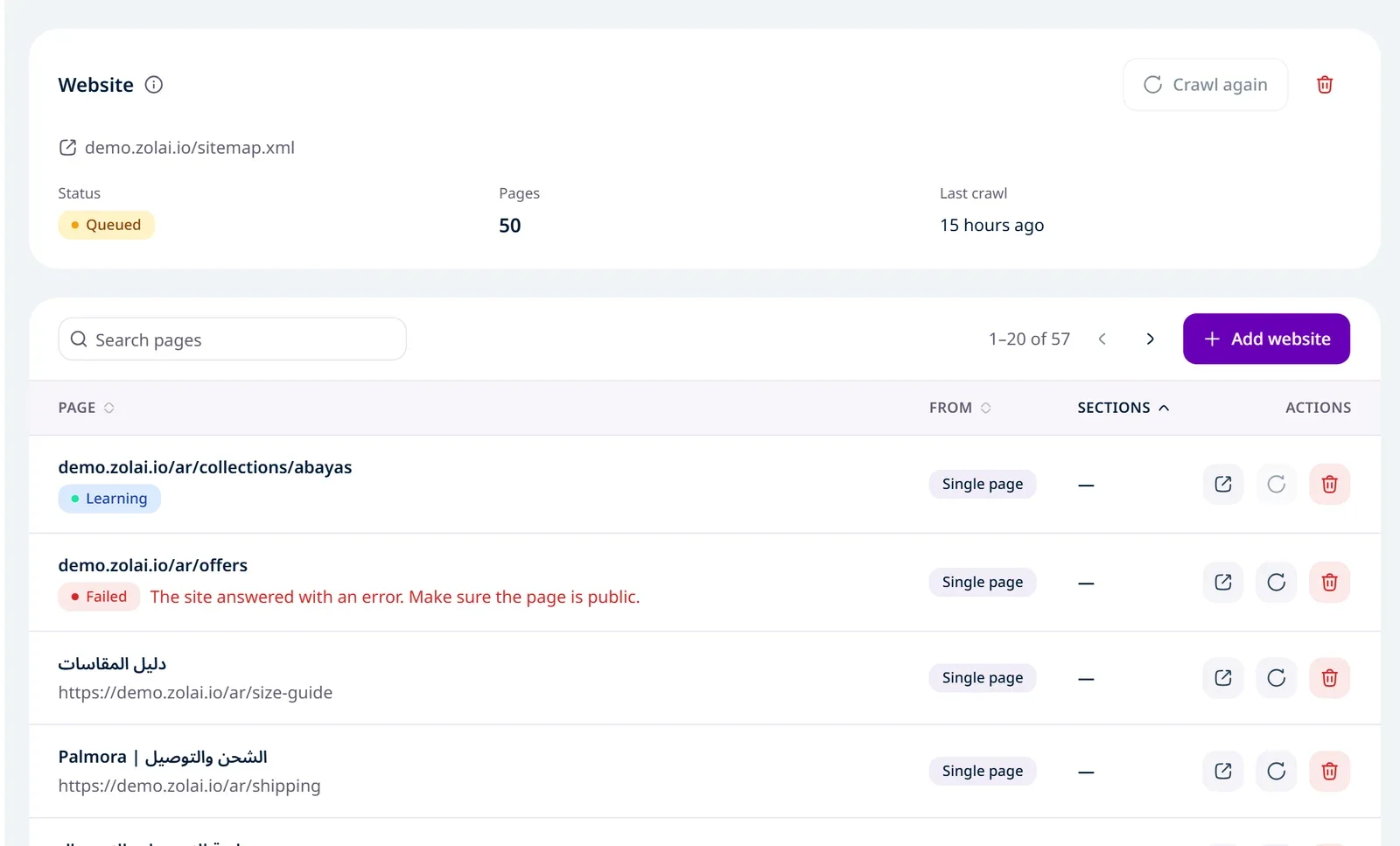
The Website card shows three things: Status, the Pages we read, and the Last crawl. Below it is the table of Pages your agent learned from. A single page shows its status under its title until it's ready.
Status | What it means |
|---|---|
Queued | The source is in line; we'll start reading it shortly. |
Learning | We're reading the pages and preparing them for your agent. |
Ready | Your agent answers from this content. |
Failed | We couldn't read it. The reason shows under the status. |
robots.txt and ZolaiBot
Our page reader identifies itself as ZolaiBot and follows your site's robots.txt:
Pages the file blocks inside the site are skipped.
If it blocks the very link you added, the status becomes Failed with the reason "The site's robots.txt doesn't allow reading this page."
To let Zolai read your site, add these lines to your robots.txt:
User-agent: ZolaiBot
Allow: /
A ZolaiBot group takes priority over User-agent: *, so you can allow us while keeping limits for others. Upper or lower case doesn't matter.
Update knowledge after you change your site
We don't re-read your site automatically when it changes. After you edit your pages:
Whole website: click Crawl again on the site card. The button is off while the site is queued or learning, unless it has been stuck that way for more than 30 minutes; then it works again so you can restart the crawl.
Single page: click the re-sync icon in the page's row.
Remove website (the trash icon) makes your agent forget every page it learned from that site. This can't be undone; you'd have to add the site again.
Limits
What | Limit |
|---|---|
Pages per whole website | Up to 50 |
Size of one page | Up to 3 MB |
Time to wait for a page | 15 seconds |
Redirects | Up to 5 |
If reading fails
The reason shows under the status in plain words: the site didn't answer, the page isn't public, the link isn't a web page, or we found no text to learn from. Fix the cause, then crawl again. Details: A source failed or is stuck.