A source failed or is stuck
Read the reason on the source row, fix it, then click Re-sync. A source Queued or Learning for about 30 minutes is stuck, and re-syncing fixes it.
4 min readاقرأ المقال بالعربية
If a source shows Failed, open its row on the Knowledge page, read the reason shown there, fix it, then click Re-sync (or Crawl again for a whole site). If a source stays Queued or Learning for about 30 minutes with no change, it is stuck rather than failed, and re-syncing fixes that too.
Who can do this
Admins, or a custom role with the permission to manage sources.
Fix a failed source
Open your agent and go to Knowledge.
Open the matching tab: Website, Files, Q&A, or Text.
Find the row with the Failed status. The reason is written in the row.
Find the message in the tables below and do what it says.
Click Re-sync on the row. For a whole site, click Crawl again.
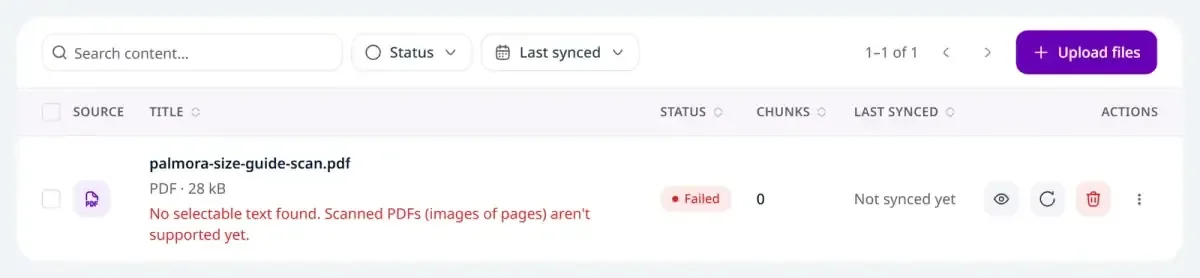
To retry several sources at once, select their rows and use the bulk Re-sync action.
Website messages
Message | What to do |
|---|---|
This link points to an internal or private network, so it can't be read. | Use a link to a page that is public on the internet. |
We couldn't reach the site. Check that the link works, then re-sync. | Open the link in your browser. If it works, re-sync. |
The site took too long to respond. Re-sync later. | Re-sync later. |
The site answered with an error. Make sure the page is public. | Make sure the page doesn't require a login. |
The page is larger than the allowed size. | The limit is 3 MB per page. Use a smaller page. |
This link isn't a web page. Use the link of an HTML page. | Add a page link, not a file link. |
The link redirects too many times. | Use the final link of the page. |
The site's robots.txt doesn't allow reading this page. | Allow ZolaiBot in robots.txt, then re-sync. |
We found no text to learn from in this source. | A page with under about 80 characters of text counts as empty. Pick a page with written content. |
File messages
Message | What to do |
|---|---|
The file is no longer in storage. Delete this source and upload the file again. | Delete the source and upload the file again. |
The file is larger than the allowed size. | The limit is 10 MB per file. Split the file. |
This file isn't a PDF, Word (.docx) or text file. | Convert it to one of those types. |
The PDF is password-protected. Remove the password, then upload it again. | Remove the password and upload it again. |
The file is damaged or couldn't be opened. | Open it on your computer. If it won't open, export it again. |
No selectable text found. Scanned PDFs (images of pages) aren't supported yet. | Upload a version with selectable text. |
The file has too much text to learn at once. Split it into smaller files. | Split the file and upload the parts. |
Reading the file took too long. Re-sync to try again, or split the file. | Re-sync. If it happens again, split the file. |
Learning model and processing messages
Message | What to do |
|---|---|
The content was read, but the learning model is busy right now. Re-sync in a few minutes. | Wait a few minutes, then re-sync. |
The content was read, but the learning model isn't switched on yet. Re-sync later. | Re-sync later. |
File storage isn't set up for background processing yet. Re-sync later. | Re-sync later. |
Something went wrong while processing. Re-sync to try again. | Re-sync. |
When the learning model is busy, Zolai retries on its own after about 10 minutes and again after about 30 minutes, then shows Failed. If a read ends with no result, Zolai marks the source Failed with the generic error message after about 30 minutes.
A source that isn't moving
If a source stays Queued or Learning for about 30 minutes with no change, Zolai treats it as stalled. Only then does Crawl again become clickable for it, and Re-sync works on its row. Bulk Re-sync skips sources that are still being processed normally.
If the app says the source is busy, it is processing normally. Wait instead of retrying.
The "Background processing is off" banner
It means new sources wait in the queue until processing is switched on. This switch is on Zolai's side. If the banner stays, write to support@zolai.io.
Limits
Item | Limit |
|---|---|
Website | Up to 50 pages |
Page size | 3 MB |
File size | 10 MB each |
Per upload | 10 files |
File sources | 100 per agent |
300 pages | |
Scanned PDFs | Can't be read |