The agent gave a wrong answer or didn't answer
If your agent gave a wrong answer or no answer, find the conversation, check the source it cited, fix your content, and test again in Try it.
4 min readاقرأ المقال بالعربية
If your agent gave a wrong answer or didn't answer a visitor's question, the cause is usually the content, not the agent. The agent answers only from what you added: your website, files, Q&A, text, and Business info. Follow these steps to find the answer, see where it came from, and fix it.
Who can do this
Admins, or any custom role that can manage sources. The question lists in Analytics and the Inbox show what visitors wrote, so you also need Inbox access.
Find the answer
Search for the conversation
Open the Inbox.
Search by visitor name, email, phone, or any word from their messages.
Open the conversation and read the agent's reply.
Find questions with no source
An unanswered question is an agent reply that cited no source. Greetings and small talk are not listed.
Open Analytics, then the Questions tab.
Choose the No source found view, titled "Questions the AI had no source for".
In any row, select Open in Inbox to see the full conversation.
Select the rows you want, then select Add to Knowledge in the toolbar.
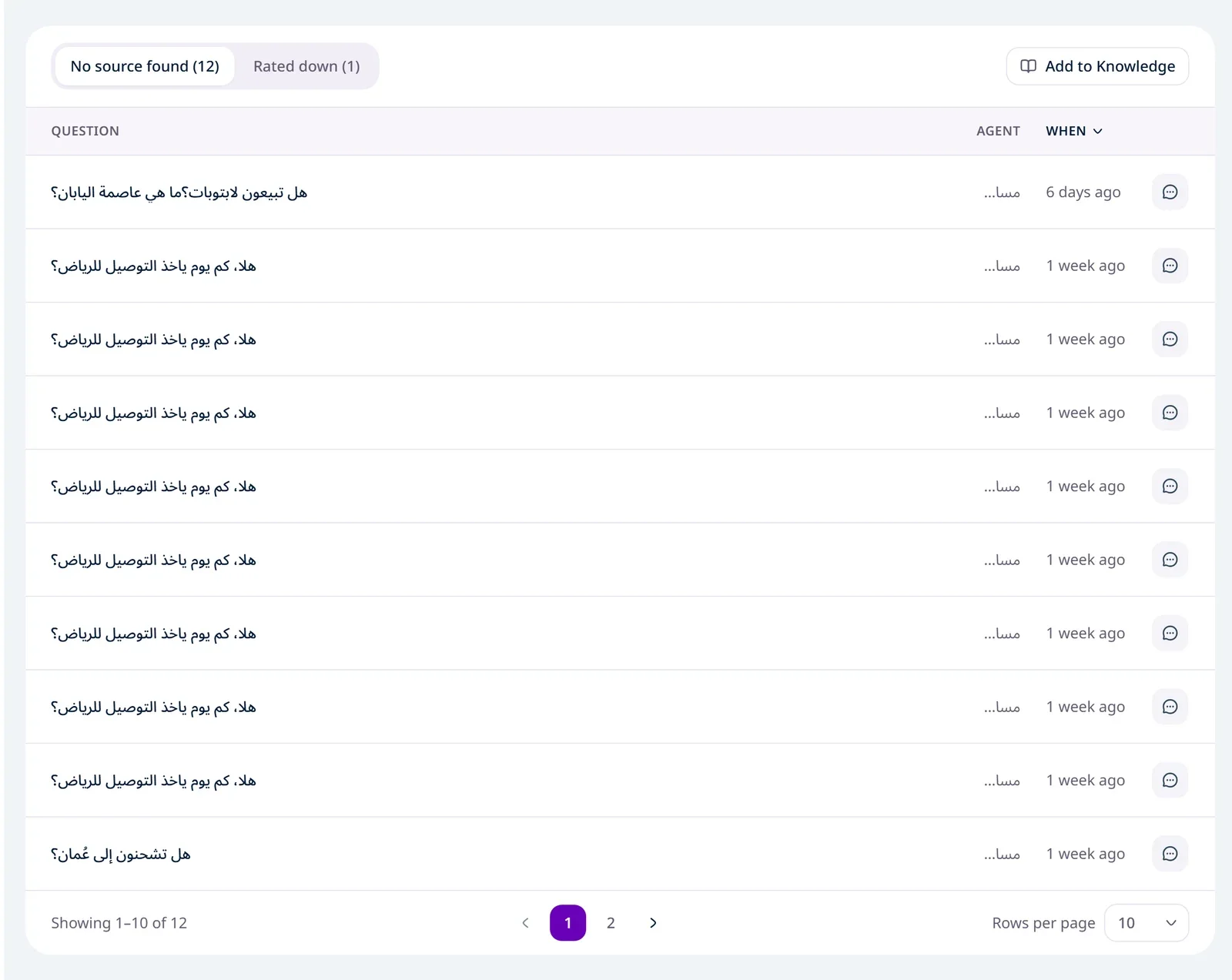
Next to it is the Rated down view: answers visitors rated down. Review those the same way. See also Read your analytics.
Check the source it cited
Under each answer in Try it, the Answered from list shows only the passages the reply cited. Open the source and compare it with the answer:
The source is outdated or wrong: the answer is a faithful copy of it. Update the content as described below.
There is no source: Try it shows "Your agent found nothing about this in your content. Add it under Knowledge so it can answer." In an Inbox conversation you'll see "The agent found nothing about this in your content." The information isn't there, so add it.
A source shows Failed or looks stuck: the agent can't use it. See A source failed.
Fix the content
Open the agent, then the Knowledge page, and pick what fits:
Q&A: add the question as visitors ask it and your exact answer. Best for short facts. You can save up to 50 pairs at a time.
Text: paste a paragraph or a full policy, up to 100,000 characters.
Business info: correct the name, opening hours, or contact details. See Business info.
Website or Files: if the original changed, re-read it or upload a new version. See Keep your knowledge up to date and Upload files.
Keep each fact in one place, so two sources don't say different things.
Add a rule in Behavior
If the information is right but the way the agent answers is the problem, open Behavior, then Rules, and add a short one-line rule, for example telling the agent to send custom pricing questions to your team. A rule changes style. It doesn't add facts the agent doesn't have.
Don't put facts in a rule that aren't in your content. Add them under Knowledge so the agent can answer from them and show a source.
Test again in Try it
Open Try it. The page is titled "Test your agent".
Ask the same question the agent got wrong.
Check the Answered from list. Does it show the source you just added or fixed?
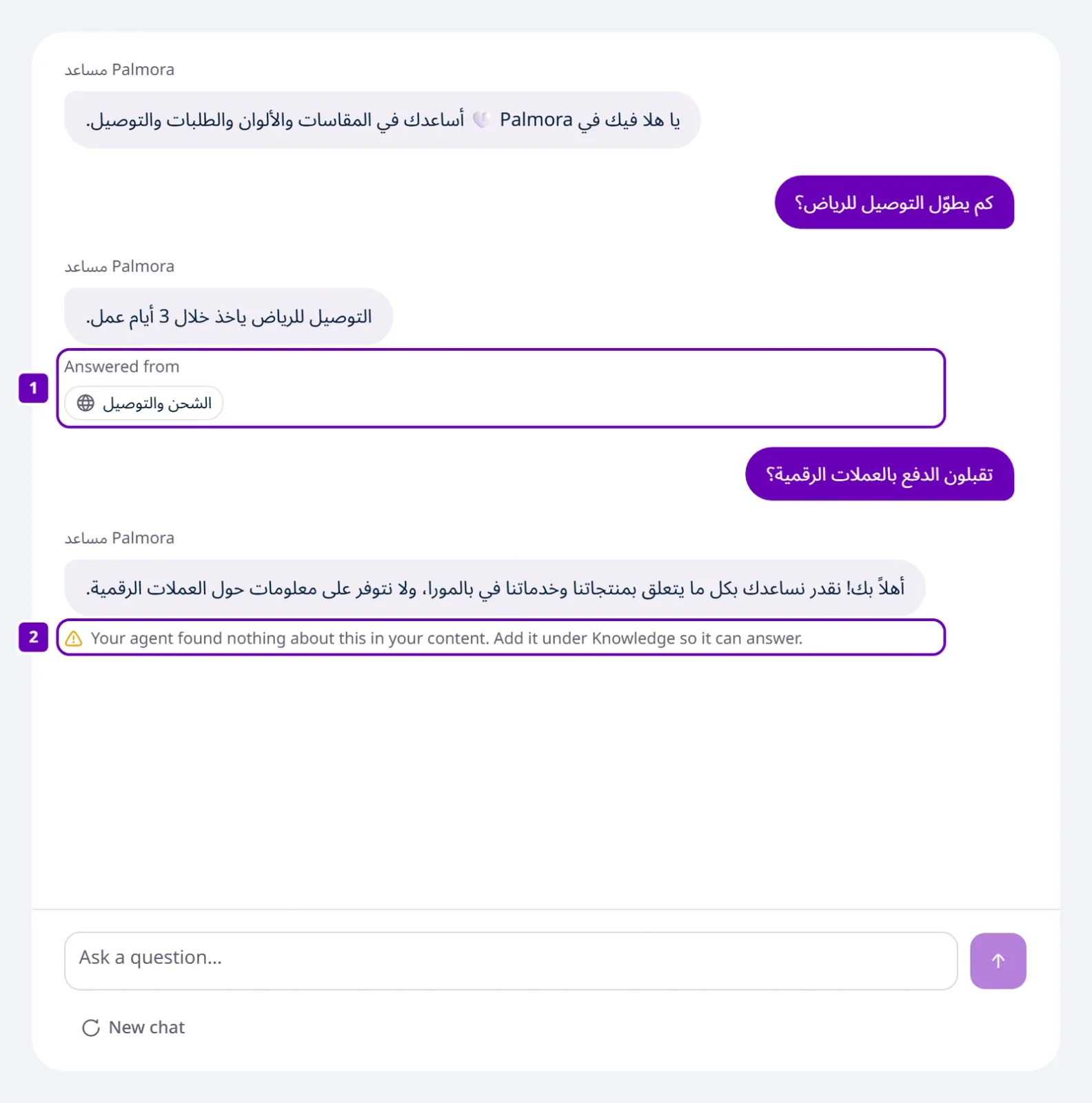
This chat isn't saved. Try a few different wordings. Even after a fix, we can't promise the agent will answer correctly every time, so check the No source found view now and then. See Test your agent.
Limits
Item | Limit |
|---|---|
Rules in Behavior | Up to 20 |
Rule length | 200 characters |
Q&A | Up to 50 pairs per save |
Text | 100,000 characters |