Catalog: show products and services as cards
Add a catalog by feed link, file, or by hand so your agent shows your products and services as cards in the chat.
3 min readاقرأ المقال بالعربية
Add a catalog in the Catalog tab of the Knowledge page so your agent shows your products and services as cards in the chat window. Each agent has one catalog. You fill it one of three ways: a feed link, a file upload, or by hand. Only the item name is required.
Who can do this
Admins, or a custom role that can manage sources. Sync now needs the sync permission.
Add a catalog
Open your agent and go to Knowledge.
Open the Catalog tab.
Click Add catalog.
Under Catalog source, choose one way. The three ways exclude each other.
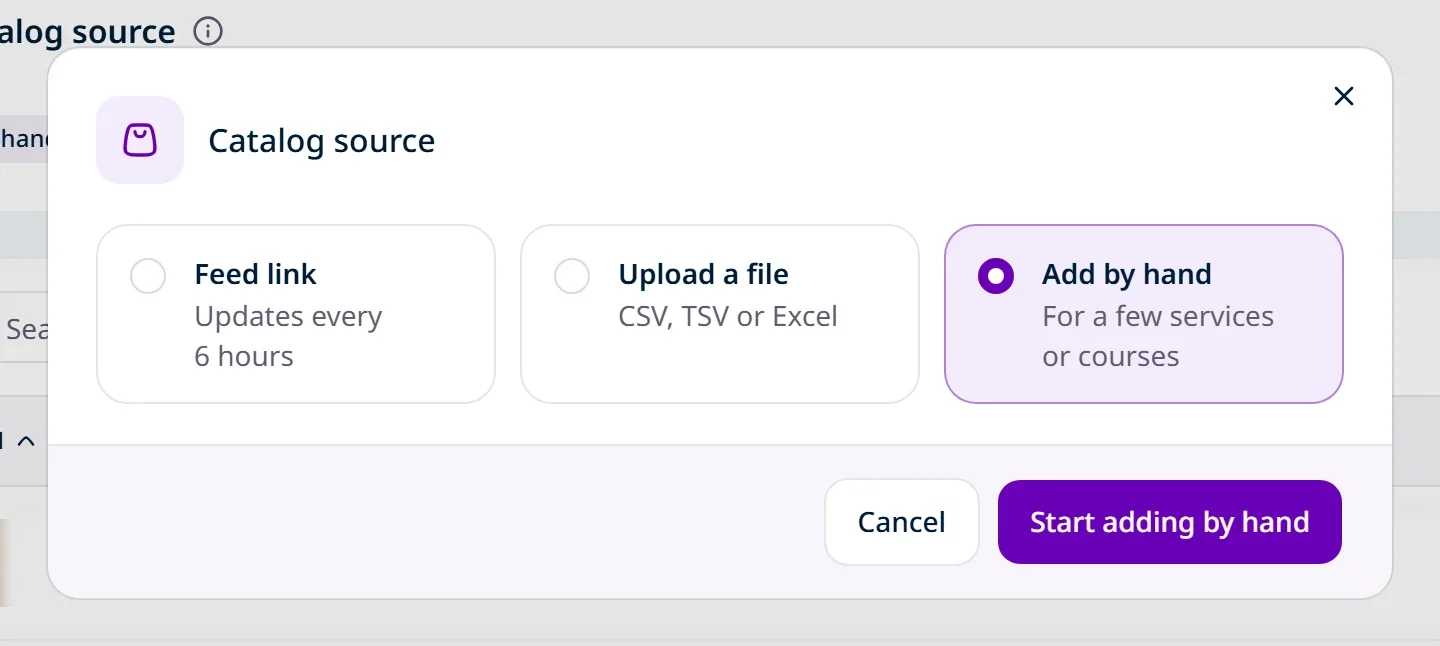
Option 1: Feed link
Choose Feed link. Zolai accepts a Google Merchant or Meta XML feed, or a CSV or TSV file.
Paste the link and click Test link.
Click Save and sync.
Option 2: Upload a file
Choose Upload a file. Supported: CSV, TSV, or .xlsx, up to 10 MB.
If you want a starting point, click Download template.
Pick the file and click Upload and sync.
Option 3: Add by hand
Choose Add by hand and click Start adding by hand.
Click Add item and type its name. Every other field is optional.
Click Save item.
A name alone is enough to add an item. But the more you fill in, such as price and description, the more the card can show.
What visitors see
When a visitor asks about a product or service, the agent searches the catalog in the same reply, so cards appear with the first answer. A reply shows at most 4 cards.
The agent only mentions items, prices, discounts, and stock that the catalog search returned. It never writes links itself, because the card carries the link. So keep your catalog data correct and current.

Keep the catalog current
Feed link: syncs by itself about every 6 hours. You can click Sync now, then wait about 5 minutes before the next one. To change the link, click Edit link.
Uploaded file: doesn't sync by itself. Click Replace file and upload the new version.
Items added by hand: don't sync by themselves. Edit them yourself.
To switch method: click Change source.
[[IMAGE S20: A feed catalog source with the Sync now button and the Syncing status]]
If a sync fails
The status shows Failed with the reason. The items from before are kept, your agent still suggests them, and the next sync is still scheduled. Fix the link or file, then click Sync now.
Remove the catalog
Click Remove catalog, then confirm in the "Remove the catalog?" dialog.
After you remove it, the agent stops showing items as cards.
Limits
Item | Limit |
|---|---|
Items in the catalog | 5,000 (a feed keeps the first 5,000) |
Items added by hand | 200 |
Uploaded file | 10 MB |
Feed | 30 MB |
Cards per reply | 4 |